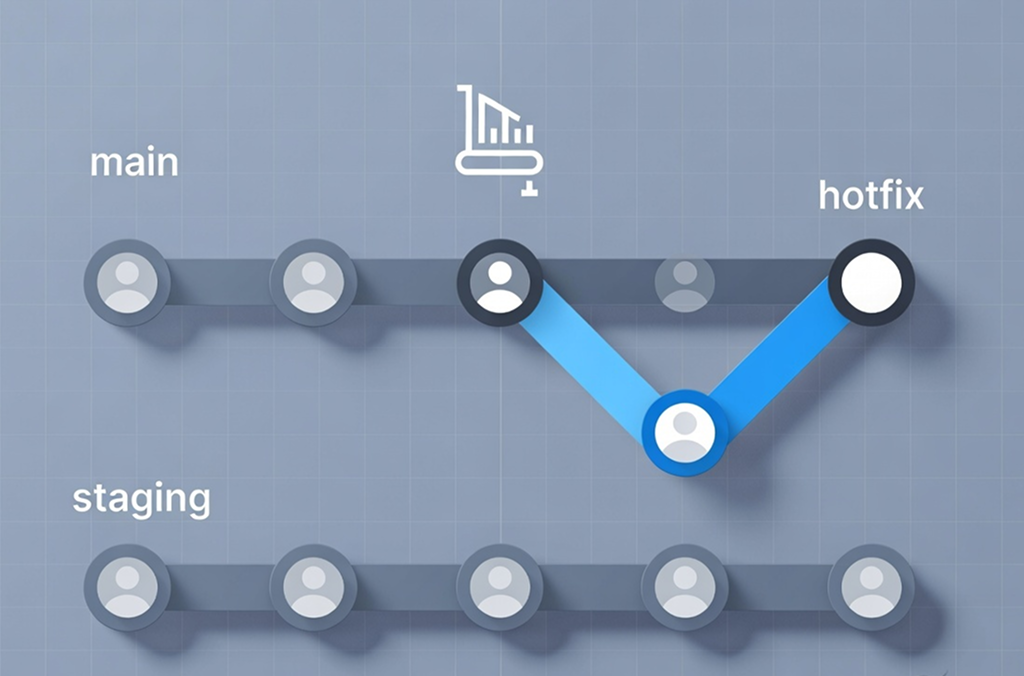
A client reports a critical bug on production. You go to fix it, and your staging branch is full of half-finished features that cannot go live. Merging staging into production to ship the one fix would drag all of that unfinished work out with it. So you are stuck: the fix is ready, but the usual path to production is blocked.
I hit this constantly on real teams, and the answer is always the same. You do not merge staging. You extract just the fix with a hotfix branch. It is the same instinct that runs through how I modernize a legacy SaaS without a rewrite: change production in the smallest, most reversible step possible, and never drag unrelated work along for the ride.
The short version
A hotfix branch is a short-lived branch cut directly from production. You make the fix there, deploy that branch to production, and then merge it back into staging and development so the fix is not lost. It releases the urgent change in minutes without dragging unfinished work to production, and without creating merge conflicts later. That is the whole workflow. The rest of this post is the steps and the reasoning.
Why you cannot just merge staging into production
Staging is where unfinished work lives. On a healthy team it usually contains several features in progress, code that has not been fully tested, and experimental changes that are not ready for users.
If you merge staging into your production branch just to ship one fix, every one of those unfinished things goes live with it. You set out to fix one bug and you shipped ten half-built features instead. That is how a small fix becomes a large outage.
So the goal is not “get my fix to production.” It is “get ONLY my fix to production.” That is exactly what a hotfix branch gives you.
When to reach for a hotfix branch
I use this workflow whenever all of these are true: there is an urgent production bug, staging contains work that cannot ship yet, and merging staging or development into production is therefore off the table. It does not matter whether the fix already exists on staging or is brand new. The approach is the same either way.
The workflow, step by step
1. Cut a hotfix branch from production
Start from the production branch, fully up to date, so your fix is built on exactly what is live and nothing else.
git checkout master
git pull
git checkout -b hotfix/issue-123
This isolates the fix from all the unfinished work sitting in staging.
2. Apply the fix
If the fix already exists as a commit on staging, do not rebuild it. Cherry-pick that one commit onto the hotfix branch.
git cherry-pick <commit-hash>
If it is a brand new fix, just write the code directly on the hotfix branch. Either way, the hotfix branch now contains your fix and nothing else.
3. Commit and test
git add .
git commit -m "Fix: issue 123"
Test the fix on this branch before it goes anywhere near production. Because the branch is built from live code plus only your change, what you test here is exactly what production will get.
4. Merge into production and deploy
git checkout master
git merge hotfix/issue-123
git push
Deploy. Production now has the fix and none of the unfinished staging work.
5. Merge the fix back into staging and development
This is the step people forget, and forgetting it causes the next conflict. Your fix is now on production but not on the other branches, so they have diverged.
git checkout staging
git merge hotfix/issue-123

git checkout development
git merge hotfix/issue-123
Now every branch has the fix, nothing has diverged, and the next time staging is ready to release it will merge cleanly. Then delete the hotfix branch. It has done its job. Skipping this step is the usual cause of the dreaded “you have divergent branches” message later, when the branch you forgot to sync finally comes back to bite you.
What this protects you from
The reason this workflow is worth the discipline is what it prevents, not just what it does. It keeps unfinished work off production, so an urgent fix never becomes an accidental release. It keeps your branches from diverging, so you do not pay for today’s rush with a painful merge conflict next week. And it gives you a fix that was built and tested against exactly what is live, which is the only thing you actually want under pressure.
This is the standard Gitflow approach to hotfixes, and it exists for a reason. Under pressure, the safe path and the fast path need to be the same path. A hotfix branch makes them the same.
Frequently asked questions
Why can’t I just merge staging into production to release a fix? Because staging holds unfinished, untested work that cannot go live. Merging it to ship one fix drags all of that to production with it, turning a small fix into a large risk. A hotfix branch lets you release only the fix.
Should I cherry-pick the fix or rewrite it on the hotfix branch? If the fix already exists as a commit on staging, cherry-pick it so you reuse the exact tested change. If it does not exist yet, write it directly on the hotfix branch. Both leave the branch containing only your fix.
Why merge the hotfix back into staging and development? Because after you deploy, the fix is on production but not on the other branches, so they have diverged. Merging it back keeps every branch consistent and prevents a merge conflict the next time staging is released.
Is this the same as Gitflow? Yes. The hotfix branch is Gitflow’s standard answer to urgent production fixes. It exists precisely so the fast path and the safe path are the same path when you are under pressure.
The takeaway
When production is broken and staging is not ready, do not choose between shipping unfinished work and waiting days for staging to stabilize. Cut a hotfix branch from production, fix it there, deploy it, and merge it back. The urgent change ships in minutes, production stays clean, and your branches stay in sync.